


Most electronics don’t “randomly die”—they get pushed past their design limits by a few repeatable, preventable habits like heat stress, liquid exposure, dirty power, and rough handling. This guide helps everyday users avoid the most common mistakes that damage electronics so your devices stay reliable longer.
To make prevention practical, you’ll learn what “electronics-damaging mistakes” really include in real life (not just dramatic accidents), and how small daily choices—charging, cleaning, storage, and airflow—stack up into measurable wear.
You’ll also see how the risk profile changes by device type: a phone fails differently than a laptop, and a tablet’s weak points aren’t identical to either one. That difference matters because the “right fix” depends on the hardware’s design.
Introduce a new idea: once you know the failure patterns, you can treat mistakes like a checklist—what to stop doing, what to do immediately after an incident, and what routine prevents repeat damage.
What does “electronics-damaging mistakes” mean in real life?
Electronics-damaging mistakes are everyday actions that push a device’s heat, moisture, power, mechanical, or contamination limits until components degrade faster than normal—often without immediate failure. Next, the key is recognizing that “damage” can be invisible for weeks before it becomes a dead port, weak battery, or unstable system.
Is “damage” always immediate, or can mistakes cause slow failure over time?
No—many electronics-damaging mistakes cause slow failure over time, not instant death, because components wear out through repeated stress rather than one dramatic event. Specifically, most consumer electronics are built with safety margins, so the first few “bad” exposures often look harmless while they quietly reduce lifespan.
Slow failure is common because electronics degrade in layers:
- Thermal wear: repeated high heat dries out electrolytic capacitors, accelerates battery aging, and weakens solder joints.
- Mechanical wear: small flexing or cable strain loosens connectors and breaks micro-solder points.
- Moisture and contamination: tiny residues create corrosion paths and leakage currents long after a spill “seems fine.”
- Power stress: surges and unstable adapters can weaken power-management circuits gradually.
A useful mental model: one big mistake can kill a device today, but repeated small mistakes usually kill it “on schedule”—right after warranty, during travel, or when you need it most.
What are the main “failure pathways” that common mistakes trigger?
Common mistakes trigger a handful of repeatable failure pathways: heat overload, liquid ingress and corrosion, dirty/unstable power, mechanical shock or flex, and contamination buildup in ports and cooling systems. Then, once you map a mistake to a pathway, you can pick the right prevention and the right “what to do next” response.
Here are the pathways to keep in mind throughout the article:
- Heat pathway (thermal stress): blocked vents, hot charging, sun exposure, heavy workloads on soft surfaces.
- Moisture pathway (corrosion/shorts): spills, condensation, humid storage, “cleaning” with too much liquid.
- Power pathway (surges/overcurrent): cheap chargers, unstable outlets, lightning, worn cables, wrong adapters.
- Mechanical pathway (impact/flex): drops, bent connectors, carrying laptops by a corner, pressure in bags.
- Contamination pathway (dust/lint/skin oils): clogged fans, lint-packed ports, sticky residues, metal debris.
Once you can label the pathway, you stop guessing—and prevention becomes systematic instead of superstitious.
Which common mistakes damage electronics the fastest?
The fastest electronics damage comes from high heat + charging, liquid exposure (including “not really a spill”), dirty power from poor chargers or surges, and physical strain on ports and boards. To begin, focus on the mistakes that combine high energy (heat/electricity/impact) with low tolerance parts (batteries, ports, power management, thin solder joints).
Is heat the #1 silent killer for phones and laptops?
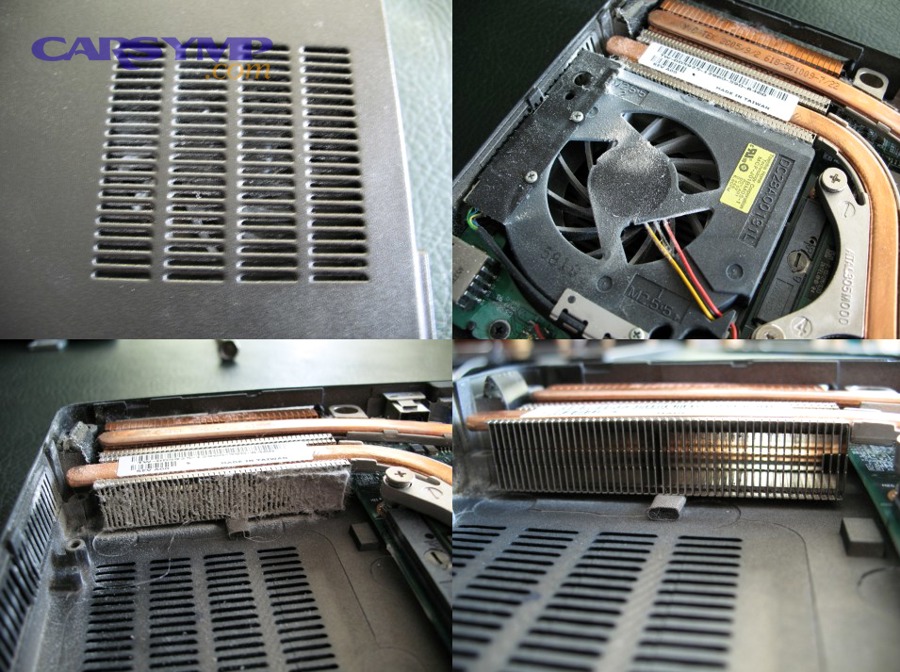
Yes—heat is a top silent killer for phones and laptops because it accelerates battery aging, stresses chips, and weakens solder joints, even when the device still “works fine.” More importantly, heat is dangerous because it’s often self-inflicted: people create it through charging behavior, airflow mistakes, and heavy workloads.
Heat damage shows up as:
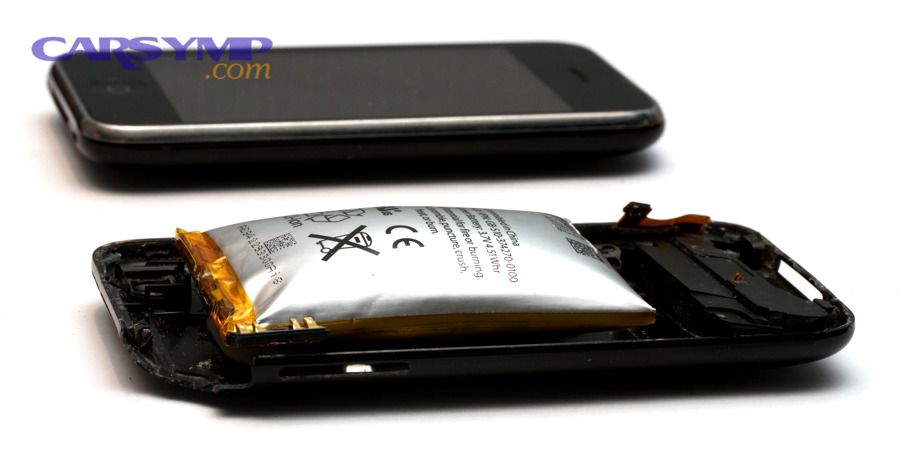
- Battery symptoms: faster drain, sudden drops, swelling risk in worst cases.
- Performance symptoms: throttling (slowing down), random lag, shutdowns under load.
- Long-term reliability: more crashes, port issues, or “won’t boot” after months of heat stress.
High-risk heat habits include:
- Charging under a pillow/blanket or on a soft couch
- Gaming while fast-charging
- Leaving a phone on a car dashboard
- Running a laptop on a bed (blocking intake)
- Never cleaning dust from vents/fans
A real-world indicator: if your device is “too hot to comfortably hold” for more than a few seconds, you’re likely operating in a zone that shortens lifespan.
Evidence: According to a study by SLAC National Accelerator Laboratory from the battery research team, in 2021, storing lithium-ion battery cathode materials below 0°C led batteries to lose up to 5% more capacity after 100 charges than batteries stored at warmer temperatures—showing how temperature stress measurably accelerates degradation.
How do liquid spills and humidity cause hidden corrosion?
Liquid spills and humidity cause hidden corrosion by leaving conductive residues and moisture films that create leakage currents, short circuits, and long-term trace damage—even after the surface looks dry. Besides, the real danger isn’t only “water,” but what water carries: minerals, sugar, acids, and salts that stay behind.
Why “it worked after the spill” is not proof of safety:
- The device can power on while corrosion is quietly eating connectors.
- Residue can bridge pins later, especially when the device warms up.
- Key areas (under shields, under chips, inside ports) dry slowly.
Common spill mistakes that accelerate damage:
- Turning the device on repeatedly “to check.”
- Plugging it in to charge while damp.
- Using heat (hair dryer/oven) that drives moisture deeper or warps plastics.
- Not cleaning sticky residue (coffee/soda) before it dries into a conductive mess.
Humidity can be just as sneaky when it leads to condensation. Evidence: According to a study by Technical University of Denmark from the electronics corrosion research community, in 2023, humidity-driven water-layer formation on PCB surfaces—especially combined with contamination—accounted for more than 70% of the observed effect on failure status in a predictive reliability analysis, highlighting why “humid + dirty” environments are high-risk even without obvious spills. (rpsonline.com.sg)
Why do cheap chargers, power strips, and “fast charging hacks” increase risk?
Cheap chargers, low-quality power strips, and “fast charging hacks” increase risk because they can deliver noisy or incorrect power, run hotter, and stress charging and power-management circuits beyond what the device expects. Moreover, charging is when a device’s most delicate power systems are fully active—so bad power doesn’t just “charge slower,” it can degrade hardware.
High-risk power behaviors:
- Using unbranded or counterfeit chargers/cables
- Mixing random fast-charge bricks with unknown cables
- Daisy-chaining power strips (strip into strip)
- Using a worn-out, loose outlet that arcs intermittently
- Charging during storms without surge protection
This is where Fuse types and ratings explained becomes relevant: fuses are designed to protect wiring and devices by opening the circuit when current exceeds safe limits. The problem is that many consumer charging setups (especially cheap adapters) either lack robust protection or fail in ways that still pass damaging spikes downstream.
A practical rule: if a charger gets unusually hot, smells “plastic-y,” buzzes, or makes a device behave erratically (ghost touches, random disconnects), retire it immediately.
How does physical stress (drops, pressure, cable strain) break electronics internally?
Physical stress breaks electronics internally by cracking solder joints, loosening connectors, bending boards, and damaging delicate flex cables—often without visible external damage. Especially, modern devices use thinner materials and tighter tolerances, so “minor” strain can become major failure later.
The fastest physical-damage mistakes:
- Yanking cables out by the cord instead of the plug
- Letting a phone hang from a charging cable (lever action on the port)
- Carrying a laptop one-handed by a corner (board flex)
- Putting devices in overstuffed bags where they get twisted
- Repeated small drops (desk height) that don’t crack the screen—yet still shock the motherboard
Early signs you’ve stressed a device:
- Charging works only at certain angles
- USB devices disconnect with slight movement
- Headphone/charging port feels “loose”
- Random reboots when you pick it up
When you treat ports and cables like structural parts—not accessories—you prevent a huge chunk of “mysterious” failures.
Do phone, laptop, and tablet mistakes differ?
Yes—phone, laptop, and tablet mistakes differ because their weakest components, cooling designs, and usage patterns aren’t the same, so the same mistake creates different failure pathways. However, the prevention logic stays consistent: protect heat flow, keep liquids out, keep power clean, and reduce mechanical strain.
Which mistakes are most common for smartphones?
Smartphones most commonly get damaged by heat during charging, pocket/bag pressure that stresses the screen and frame, liquid exposure (including humidity), and port contamination that leads to charging failures. Meanwhile, phones also face “micro-damage” from daily habits more than dramatic events.
Top smartphone-specific mistakes:
- Charging on soft surfaces (heat trap)
- Using the phone while it’s charging (more heat + port strain)
- Keeping the phone in a steamy bathroom (humidity/condensation)
- Stuffing the phone into tight pockets with keys (scratches + bending)
- Cleaning ports with metal objects (shorting pins, scraping contacts)
Port lint is a silent killer: it prevents full cable insertion, causes intermittent charging, and encourages people to “force” the plug—bending contacts.
Which mistakes are most common for laptops?
Laptops are most commonly damaged by blocked airflow, dust buildup, liquid spills on the keyboard, hinge stress, and power issues from adapters and outlets. On the other hand, laptops also suffer from “slow cooking”—running hot for hours, day after day.
Laptop-specific high-risk behaviors:
- Using it on a bed/blanket (intake blocked)
- Never cleaning vents/fans for years
- Carrying it while open or by the screen edge
- Closing the lid while hot, trapping heat
- Plugging/unplugging power while the connector is under tension
Laptop power damage often looks like “random shutdowns” or “won’t charge” before it becomes total failure—because the charging ICs and DC jack area take constant stress.
Which mistakes are most common for tablets and 2-in-1 devices?
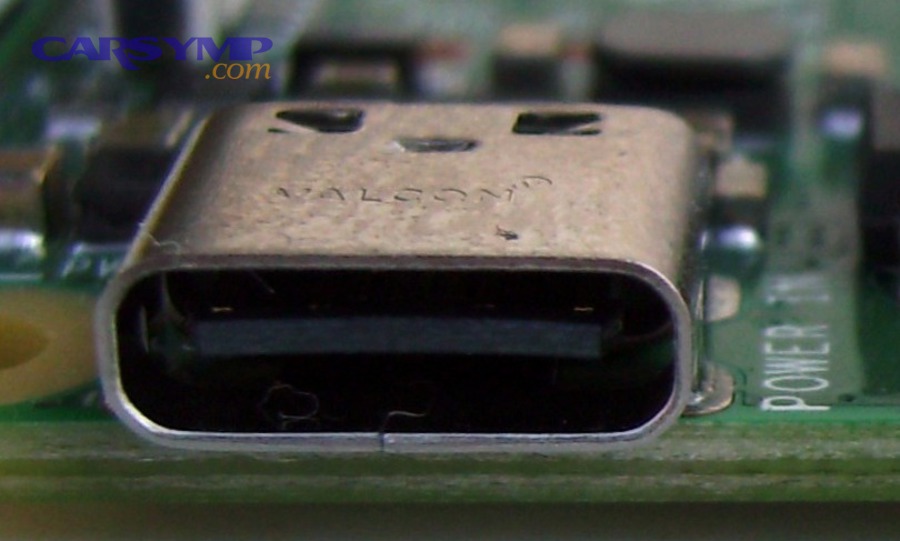
Tablets and 2-in-1 devices are most commonly damaged by pressure flex (especially in bags), connector strain on detachable keyboards/USB-C ports, and heat buildup during long charging + streaming sessions. In addition, their form factor encourages casual handling, which increases drop and bend risk.
Tablet/2-in-1 risk patterns:
- Resting weight on the device (knees, backpacks)
- Frequent attach/detach cycles that wear connectors
- Using third-party stylus chargers or docks with poor power regulation
- Leaving it in a hot car after use (battery heat + enclosure heat soak)
Because many tablets have limited cooling, they rely heavily on passive heat dissipation—so small airflow or temperature mistakes matter more.
How do risk levels change for gaming devices and wearables?
Gaming devices and wearables face higher risk from sustained heat, fast charging habits, and moisture/sweat exposure because they often run high power in small enclosures and live close to the body. More specifically, heat and moisture combine to accelerate degradation: sweat contains salts, and heat speeds chemical reactions.
Common mistakes for these devices:
- Charging immediately after heavy use (already hot)
- Wearing wearables in water beyond their real-world seal tolerance
- Ignoring swollen-battery signs in controllers or handhelds
- Using unofficial docks that don’t manage power well
When a device is small but power-hungry, it has less margin for heat and moisture mistakes—so “normal habits” can become “high stress” quickly.
What should you do immediately after a mistake happens?
The best immediate response is to stop the damage pathway first—cut power, remove moisture/heat/strain, and stabilize the device before troubleshooting. Next, the goal is to prevent the common “panic mistakes” (turning it on, charging it, or forcing parts) that make recoverable incidents permanent.
What should you do immediately after a spill?
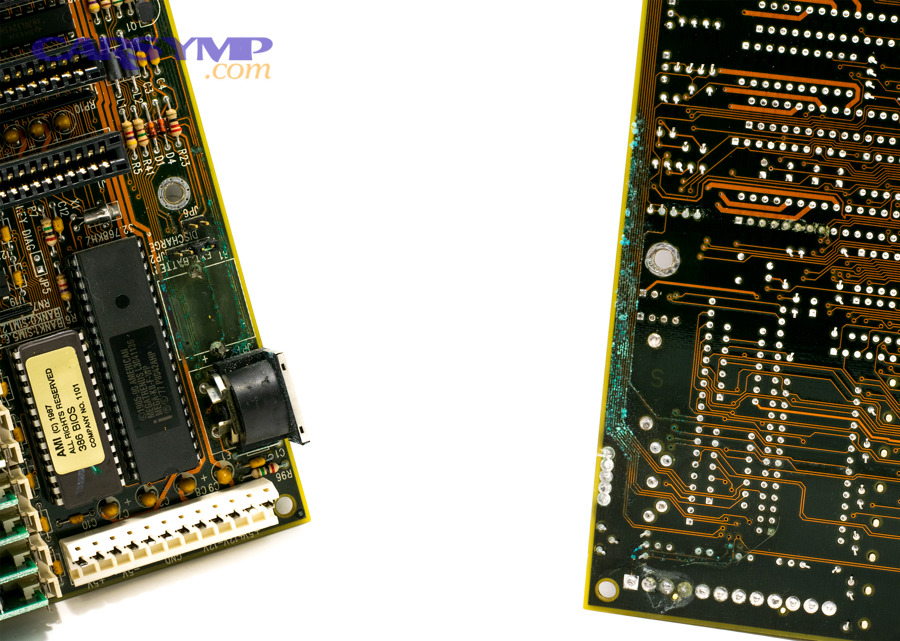
After a spill, power down immediately, disconnect power sources, remove accessories, and begin drying and cleaning steps appropriate to the liquid—before you attempt to turn it on again. Specifically, the first minutes matter because liquid can bridge contacts and start corrosion right away.
A practical spill sequence (consumer-safe):
- Power off (don’t “test” it).
- Unplug from wall/charger; disconnect peripherals.
- Drain: tilt so liquid exits away from ports and vents.
- Blot, don’t wipe (wiping pushes liquid into openings).
- Remove cases/keyboard covers to improve airflow.
- Dry time: let it sit in a well-ventilated area (fan helps).
If the spill is sugary (soda, coffee with sugar) or salty (sports drink), drying alone is not enough; residue can remain conductive. At that point, it’s smart to avoid improvisation and consider When to see a shop for electrical faults: if the device was powered on during the spill, if liquid entered ports/vents, or if you notice heat, smell, or erratic behavior afterward, professional cleaning can prevent long-term corrosion.
What should you do when a device overheats?
When a device overheats, stop the workload, remove it from heat-trapping surfaces, improve airflow, and let it cool before charging or heavy use. Besides, overheating is often a symptom of blocked ventilation or a runaway workload, so the “fix” is usually environmental plus behavioral.
Immediate cooling steps:
- Move it to a hard surface (desk/table).
- Remove thick cases temporarily (phones).
- Close heavy apps or stop gaming.
- Avoid putting it in a fridge/freezer (condensation risk).
- Wait until it returns to normal temperature before charging.
If overheating repeats:
- Clean vents (laptops).
- Check for background apps or malware-like processes.
- Replace failing chargers/cables that run hot.
- Reduce fast-charge usage when the device is already warm.
What should you do if you smell burning, see smoke, or hear popping?
If you smell burning, see smoke, or hear popping, disconnect power immediately and stop using the device because those are signs of electrical failure that can escalate to fire risk. More importantly, your job is safety first—data recovery and diagnosis come second.
Immediate safety checklist:
- Unplug from the wall and device (if safe).
- Move the device away from flammable materials.
- Do not open a swollen or smoking battery.
- If a battery is swelling, stop charging and isolate it.
This is also a clear case for When to see a shop for electrical faults (or emergency services if active fire): visible smoke, crackling sounds, melted plastic, or repeated sparking are not DIY situations.
When should you stop DIY and go to a repair shop?
You should stop DIY and go to a repair shop when the incident involves liquid inside ports/vents, persistent overheating, swelling batteries, electrical burning smells, or intermittent power behavior that suggests board-level damage. To better understand this boundary, think of DIY as fine for cleaning and basic checks—but not for situations where hidden internal damage is likely.
A simple decision rule:
- DIY is OK if the device is off, dry, stable, and symptoms are mild and improving.
- Shop is better if symptoms persist, involve power/battery, or could worsen with testing.
If you keep “testing” a damaged device, you can turn a cleanable issue into an unrecoverable board failure.
How can you build a simple “electronics longevity routine” at home?
A simple electronics longevity routine combines clean power, heat management, gentle handling, and periodic cleaning in a few repeatable steps that reduce the most common damage pathways. Below, you’ll build habits that prevent the same mistakes from happening again—and catch issues early.
What habits prevent the most common power and charging mistakes?
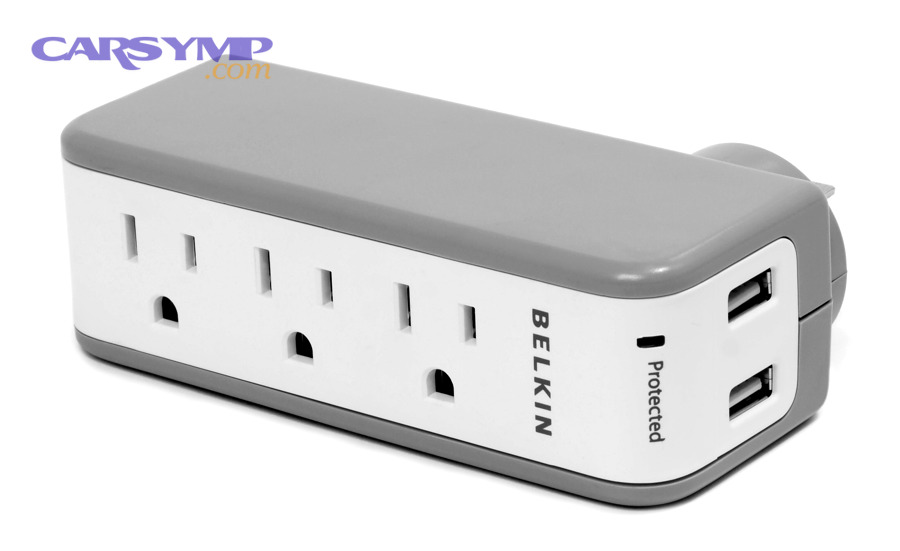
The best habits are: use reputable chargers, reduce heat while charging, protect against surges, and manage cables so ports aren’t under strain. Specifically, power-related prevention is about controlling what enters the device—voltage quality, current stability, and physical connector stress.
Core power habits:
- Use manufacturer-recommended or certified chargers/cables.
- Avoid charging on soft surfaces; keep airflow around devices.
- Don’t daisy-chain power strips.
- Replace frayed cables early.
- Keep charging ports clean (no metal poking).
This is where fuse replacement becomes relevant in home setups: if you use a surge protector, UPS, or power strip with a replaceable fuse, replacing the correct fuse can restore protection—but only if you match the correct rating and type. Treat protection parts like safety equipment, not “optional accessories.”
A quick note on Fuse types and ratings explained (home-user level):
- Fast-blow fuses protect sensitive electronics quickly.
- Slow-blow (time-delay) fuses tolerate brief startup surges (common in power supplies).
- The current rating (A) and voltage rating (V) must match device requirements; higher is not “better.”
- The physical size must match the holder (don’t jam substitutes).
If you’re unsure, don’t guess—incorrect fuse choices can remove protection rather than restore it.
How often should you clean vents, ports, and accessories?
You should lightly clean vents and ports monthly (or sooner in dusty environments) and do deeper cleaning every 3–6 months depending on use, because dust and lint directly increase heat and connector failures. In short, cleaning is not “cosmetic”—it’s performance and lifespan maintenance.
A simple schedule:
- Weekly: quick wipe of screens/cases; check cables for strain.
- Monthly: inspect ports for lint; gently remove lint using safe tools (wood/plastic picks, soft brushes).
- Every 3–6 months: laptops—clear vents and consider professional internal cleaning if you can’t safely open it.
If you want a basic electrical check in a home office setup, How to test a fuse with a multimeter fits here:
- Set the multimeter to continuity (beep) or resistance.
- Touch probes to fuse ends.
- A good fuse shows continuity/very low resistance; a bad fuse is open/no beep.
If you’re repeatedly blowing fuses, experiencing sparking, or seeing heat at outlets, that’s another “stop and escalate” moment—again, When to see a shop for electrical faults applies because recurring faults often indicate wiring, overload, or a failing power device.
What are the less-obvious (rare) ways electronics get damaged?
Less-obvious electronics damage often comes from micro-environment issues (condensation cycles), chemical contamination, battery abuse patterns, and subtle connector wear that doesn’t look like “damage” until failure appears. Next, these rare causes matter because they explain the mysterious cases: the device was “never dropped,” “never spilled on,” and still died.
Can condensation (temperature swings) damage electronics even without a spill?
Yes—condensation can damage electronics without a spill because moisture can form inside ports and enclosures when a cold device enters warm, humid air, creating corrosion and leakage paths. Specifically, this happens during rapid temperature swings: winter-to-indoor transitions, air-conditioned rooms, or cold devices brought into steamy spaces.
High-risk scenarios:
- Bringing a phone from freezing outdoors into a warm bathroom
- Leaving a laptop in a cold car, then powering it on indoors
- Storing electronics near windows where temperature swings are large
The safest habit: let the device reach room temperature before charging or powering on if it was recently very cold or very hot.
How do “cleaning products” and compressed air cause unintended damage?
Cleaning products and compressed air can damage electronics when liquids seep into openings, chemicals degrade coatings, or compressed air drives debris deeper into ports and fans. More specifically, the mistake isn’t cleaning—it’s using the wrong method.
Common cleaning pitfalls:
- Spraying cleaner directly onto the device
- Using alcohol concentrations that harm certain coatings (or using too much liquid)
- Blasting compressed air into a port, packing lint deeper
- Using metal tools to scrape ports (short risk)
Safer alternatives:
- Apply cleaner to a cloth, not the device
- Use soft brushes and controlled airflow
- Use non-metal picks for lint removal
Can “harmless” accessories (magnetic mounts, cases, docks) contribute to damage?
Yes—some accessories contribute to damage by trapping heat, applying uneven pressure, straining ports, or delivering poor-quality power through docks and adapters. Moreover, accessory problems are tricky because they fail indirectly: the case didn’t “break” the phone, but it made charging hotter every day.
Accessory risk patterns:
- Thick cases that prevent heat from escaping during charging
- Docks with loose connectors that wiggle ports
- Cheap hubs that cause repeated connect/disconnect events
- Magnetic mounts that place stress on corners or buttons
If a device behaves better without an accessory (cooler, more stable charging, fewer disconnects), treat that as a real signal.
What are early warning signs that you’re slowly damaging your device?
Early warning signs include rising operating temperatures, inconsistent charging, random disconnects, faster battery drain, new fan noise, and subtle instability—because these are the first visible symptoms of stress pathways (heat, power, contamination, mechanical strain). To sum up, warnings are often “soft” before they become “hard failures.”
Watch for:
- Charging only at a certain cable angle
- Battery swelling, screen lifting, or a rocking phone on a flat table
- Fans running loudly during simple tasks
- Hot spots near charging ports or power bricks
- Ports that feel gritty or require force
When you spot these signs early, the fix is often simple: clean, cool, replace the accessory, improve power quality, or get a proactive inspection—before the device crosses the line into permanent damage.